

Backing up computer
is a really good habit, because if computer formats or anything bad happens to
the PC, then we can recover and get back important stuffs stored in the hard
disk, if we made backups. In my personal advise, everyone should back-up PC on
a regular basis, but if you’re a lazy person like me, then Windows 10’s
built-in tools which will back-up your computer automatically. Here’s how to.
is a really good habit, because if computer formats or anything bad happens to
the PC, then we can recover and get back important stuffs stored in the hard
disk, if we made backups. In my personal advise, everyone should back-up PC on
a regular basis, but if you’re a lazy person like me, then Windows 10’s
built-in tools which will back-up your computer automatically. Here’s how to.
How to back-up your Computer automatically
·
Click
Start and type ‘File History’ you
can be see ‘File History Settings’
click on it.
Click
Start and type ‘File History’ you
can be see ‘File History Settings’
click on it.
·
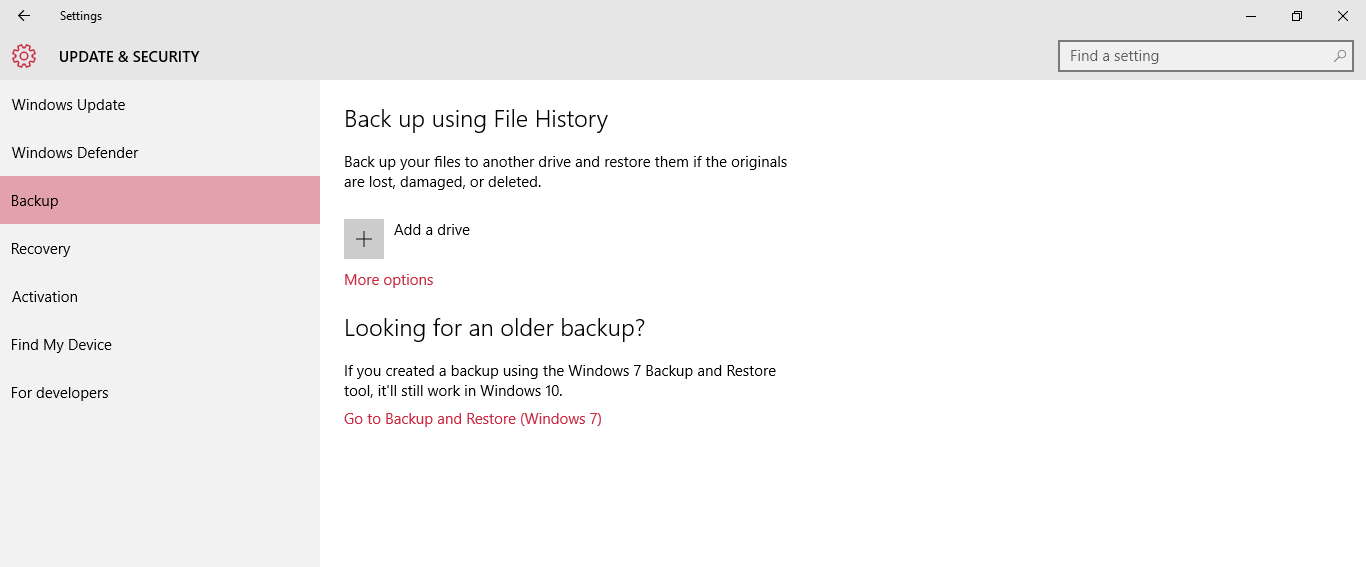
Go to
Backup and click ‘Add a Drive’.
Go to
Backup and click ‘Add a Drive’.
·
Select
the drive you want to use for File History’s Backups, and click ‘More Options’.
Select
the drive you want to use for File History’s Backups, and click ‘More Options’.
·
In this
window you can start back-up by clicking ‘Back
up Now’. As well as, you can select time period so, windows will do the
activity automatically.
In this
window you can start back-up by clicking ‘Back
up Now’. As well as, you can select time period so, windows will do the
activity automatically.
Another method for back-up of your PC
·
Head to ‘Control Panel’.
Head to ‘Control Panel’.
·
Open ‘Backup and Restore’.
Open ‘Backup and Restore’.
·
Click
setup ‘Set up Backup’.
Click
setup ‘Set up Backup’.
·
Select
your back-up drive.
Select
your back-up drive.
·
Now.
Choose whether you want windows to back-up or if you want to choose (if windows
choose files will be saved on Desktop, in your folder, and in your libraries as
well as create system image).
Now.
Choose whether you want windows to back-up or if you want to choose (if windows
choose files will be saved on Desktop, in your folder, and in your libraries as
well as create system image).
·
Click ‘Save Settings’ and run ‘back-up’.
Click ‘Save Settings’ and run ‘back-up’.
That’s it! So, start
backing up your computer automatically, if you find any issues then drop it in
comments, I’ll be happy to help you.
backing up your computer automatically, if you find any issues then drop it in
comments, I’ll be happy to help you.
Cheers!!!


