


If your Outlook status bar displays ‘Working Offline’ or ‘Disconnected’, it indicates that the Outlook isn’t connected to the mail server. Also, the Outlook icon on the taskbar is displayed with a ‘red cross mark’, indicating Outlook is offline.


Figure 1: Outlook Taskbar Icon indicating Outlook is Offline

When Outlook is offline, you can’t send or receive email until reconnected to the Outlook mail server.
However, you can write new emails, schedule meetings, add new tasks or notes, etc. while offline. These changes are synchronized with the mail server when the Outlook reconnects to the mail server.
In this post, we have discussed various reasons that may cause Outlook to go offline or disconnect from the mail server. Also, fixes to reconnect Outlook with the mail server and switch Outlook status from ‘Working Offline’ to ‘Connected.’
Why Outlook Went Offline or Disconnect?
Outlook may go offline due to three possible reasons,
- Internet or mail server connectivity issue
- Problem with the Outlook Account
- Accidentally enabling ‘Working Offline’ mode

Figure 2: Status Offline
Troubleshooting Methods to Fix Outlook’s ‘WORKING OFFLINE’ Status
Follow these troubleshooting steps to inspect the network connection and mail server,
- Check your internet connection and make sure your mail server isn’t blocked via the firewall. Ask your system administrator to allow access to the mail servers.
- If your Internet connection is working and the mail server isn’t blocked, there could be a problem with the mail server.
- To check the mail server, try log onto your email via Outlook for Web. Check if you can send and receive emails. If you can, then your mail server is working fine. If not, your PC might need updates or there could be a problem with your account or profile settings.
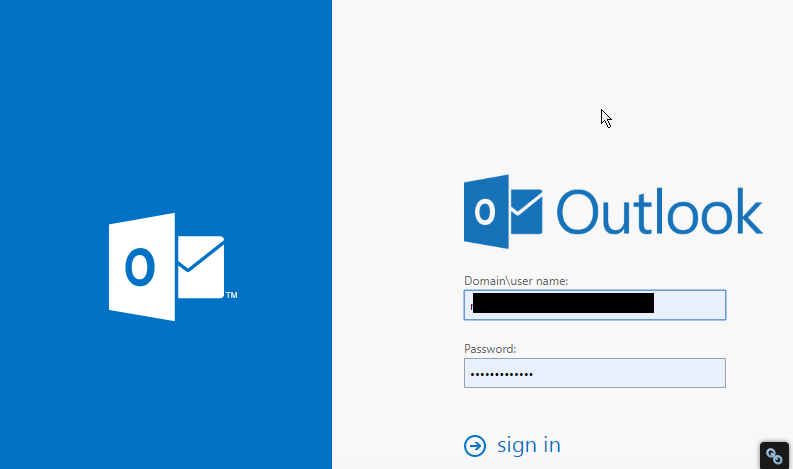
Figure 3: Outlook for Web
Follow these fixes to reconnect Outlook to mail Server:
Fix 1: Disable ‘Working Offline’
If you have accidentally switched Outlook to ‘Work Offline’ mode, follow these steps,
- Go to the ‘Send/Receive’ Tab
- If ‘Work Offline’ has a shaded background, click on it to disable

Figure 4: Work Offline Enabled

Figure 5: Work Offline Disabled
After a few seconds, the Outlook should reconnect to the mail server and you will see a change in the status bar at the bottom as ‘CONNECTED’ or ‘CONNECTED TO: [MAILSERVER NAME]’

Figure 6: Status Connected
Fix 2: Check and Install Updates
- On your Outlook, go to File>Office Account (or Account)
- Click on the ‘Update Options’ button and select ‘Update Now’ or ‘Apply Updates’
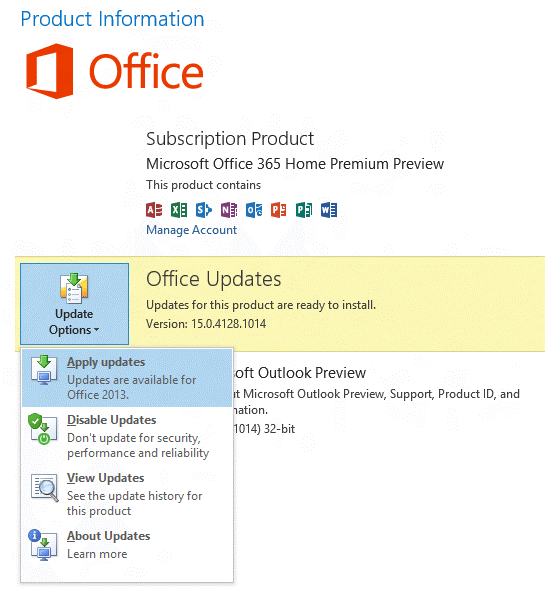
Figure 7: Update Options
If your organization is using ‘Group Policy’ to manage updates, the ‘Update Options’ button isn’t visible. Check and install the latest Windows updates to update the Outlook.

Figure 8: Update Options not available
Fix 3: Create a new profile
If your Outlook profile has a problem, the Outlook may disconnect from the server. In such a case, you can create a new Outlook profile and sign in.
- Click on File and then click ‘+Add Account’

Figure 9: Add new profile
- Then sign in using your email account
If sign-in fails with the new profile, try to reconnect your profile.
Fix 4: Reconnect Outlook Profile
Remove your mail account from the Outlook and try adding it back again. If this fails to reconnect the profile, your OST may have stopped sync from the mail server due to some error.
In such a case, you can export your Outlook mail items to an Outlook importable PST file via Outlook Import/Export wizard.
Alternatively, you may also use a third- party software such as Stellar Converter for OST to Convert OST to PST file format.
Later, you can reconfigure your Outlook profile and then import the converted PST mailbox items to your current Outlook profile.
Conclusion
If your Outlook profile is showing status as Offline or Disconnected, you should first check the ‘Send/Receive’ option and disable the ‘Work Offline’ mode. In case it’s already off, there could be a few reasons that could have led to the Outlook disconnection from the mail server.
You can follow this troubleshooting guide to check and apply various fixes that may help you reconnect your Outlook profile to the mail server. If not, export your Outlook mailbox to PST file format and then import the PST file to your new Outlook profile.
In the case of Outlook Import/Export wizard fails to export PST, you can use any reliable OST to PST converter tool as mentioned in the post. For more help, please leave your comments below.
Note:- To know the location of ScanPST.exe in different Outlook versions, read the helpful tutorial: https://www.stellarinfo.com/
Author bio

Eric Simson is an Email Platform Consultant and is associated with Stellar Data Recovery from last 6 years. He writes about the latest technology tips and provides custom solutions related to MS Outlook, MS Exchange Server, Office 365, and many other Email Clients & Servers.


2,367 Comments
I’m not sure why but this weblog is loading very slow for me.
Is anyone else having this problem or is it a problem on my end?
I’ll check back later and see if the problem still exists.
I think the admin of this site is in fact working hard for his web page, as here every information is quality based
information.
Today, I went to the beach front with my children. I found a sea shell and gave it to my 4 year
old daughter and said “You can hear the ocean if you put this to your ear.”
She placed the shell to her ear and screamed.
There was a hermit crab inside and it pinched her
ear. She never wants to go back! LoL I know this is
completely off topic but I had to tell someone!
The other day, while I was at work, my cousin stole my iphone and
tested to see if it can survive a twenty five foot drop, just so she can be a youtube sensation. My iPad is now
broken and she has 83 views. I know this is entirely off topic but I had to share it with someone!
Ahaa, its good dialogue on the topic of this paragraph here at this web site, I have read all that,
so now me also commenting here.
takipçi satın al
Hi there! I just wish to offer you a big thumbs up for the excellent information you have got
here on this post. I’ll be coming back to your web site for more soon.
Hi there, just wanted to say, I liked this blog post. It
was inspiring. Keep on posting!
Hey there would you mind letting me know which webhost you’re working with?
I’ve loaded your blog in 3 different internet browsers and I
must say this blog loads a lot quicker then most.
Can you recommend a good internet hosting provider at a fair price?
Kudos, I appreciate it!
Good article. I am dealing with a few of these
issues as well..
It’s hard to come by educated people in this particular
subject, but you sound like you know what you’re talking about!
Thanks
I every time used to read post in news papers but now as I am a user of internet
thus from now I am using net for articles, thanks
to web.
I absolutely love your website.. Pleasant colors & theme.
Did you make this website yourself? Please reply back as
I’m trying to create my very own site and would love to find out where you got this from or just what the theme is called.
Kudos!
This piece of writing is truly a good one it helps new
the web users, who are wishing in favor of blogging.
Excellent article. Keep writing such kind of information on your
site. Im really impressed by it.
Hey there, You’ve done an excellent job. I’ll certainly
digg it and individually recommend to my friends.
I’m sure they will be benefited from this site.