


If your Outlook status bar displays ‘Working Offline’ or ‘Disconnected’, it indicates that the Outlook isn’t connected to the mail server. Also, the Outlook icon on the taskbar is displayed with a ‘red cross mark’, indicating Outlook is offline.


Figure 1: Outlook Taskbar Icon indicating Outlook is Offline

When Outlook is offline, you can’t send or receive email until reconnected to the Outlook mail server.
However, you can write new emails, schedule meetings, add new tasks or notes, etc. while offline. These changes are synchronized with the mail server when the Outlook reconnects to the mail server.
In this post, we have discussed various reasons that may cause Outlook to go offline or disconnect from the mail server. Also, fixes to reconnect Outlook with the mail server and switch Outlook status from ‘Working Offline’ to ‘Connected.’
Why Outlook Went Offline or Disconnect?
Outlook may go offline due to three possible reasons,
- Internet or mail server connectivity issue
- Problem with the Outlook Account
- Accidentally enabling ‘Working Offline’ mode

Figure 2: Status Offline
Troubleshooting Methods to Fix Outlook’s ‘WORKING OFFLINE’ Status
Follow these troubleshooting steps to inspect the network connection and mail server,
- Check your internet connection and make sure your mail server isn’t blocked via the firewall. Ask your system administrator to allow access to the mail servers.
- If your Internet connection is working and the mail server isn’t blocked, there could be a problem with the mail server.
- To check the mail server, try log onto your email via Outlook for Web. Check if you can send and receive emails. If you can, then your mail server is working fine. If not, your PC might need updates or there could be a problem with your account or profile settings.
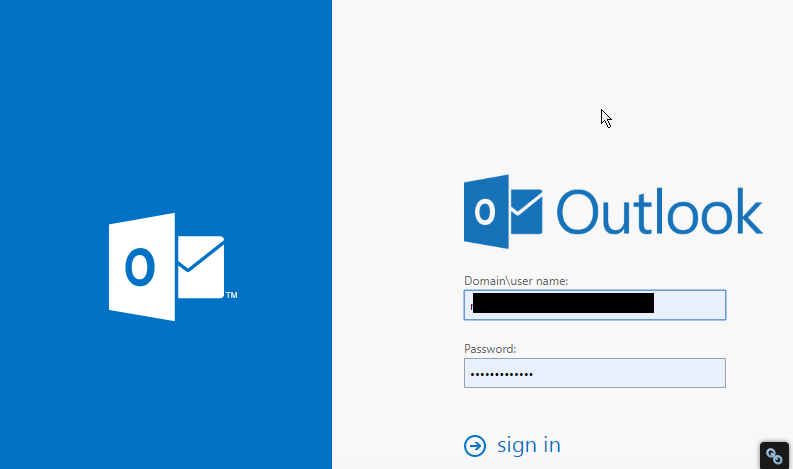
Figure 3: Outlook for Web
Follow these fixes to reconnect Outlook to mail Server:
Fix 1: Disable ‘Working Offline’
If you have accidentally switched Outlook to ‘Work Offline’ mode, follow these steps,
- Go to the ‘Send/Receive’ Tab
- If ‘Work Offline’ has a shaded background, click on it to disable

Figure 4: Work Offline Enabled

Figure 5: Work Offline Disabled
After a few seconds, the Outlook should reconnect to the mail server and you will see a change in the status bar at the bottom as ‘CONNECTED’ or ‘CONNECTED TO: [MAILSERVER NAME]’

Figure 6: Status Connected
Fix 2: Check and Install Updates
- On your Outlook, go to File>Office Account (or Account)
- Click on the ‘Update Options’ button and select ‘Update Now’ or ‘Apply Updates’
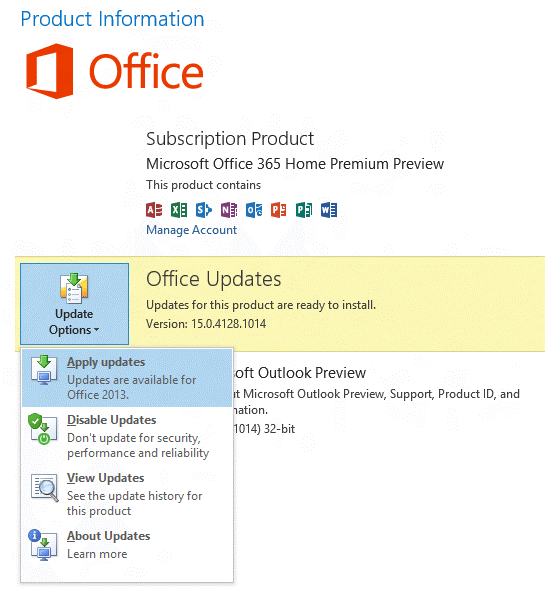
Figure 7: Update Options
If your organization is using ‘Group Policy’ to manage updates, the ‘Update Options’ button isn’t visible. Check and install the latest Windows updates to update the Outlook.

Figure 8: Update Options not available
Fix 3: Create a new profile
If your Outlook profile has a problem, the Outlook may disconnect from the server. In such a case, you can create a new Outlook profile and sign in.
- Click on File and then click ‘+Add Account’

Figure 9: Add new profile
- Then sign in using your email account
If sign-in fails with the new profile, try to reconnect your profile.
Fix 4: Reconnect Outlook Profile
Remove your mail account from the Outlook and try adding it back again. If this fails to reconnect the profile, your OST may have stopped sync from the mail server due to some error.
In such a case, you can export your Outlook mail items to an Outlook importable PST file via Outlook Import/Export wizard.
Alternatively, you may also use a third- party software such as Stellar Converter for OST to Convert OST to PST file format.
Later, you can reconfigure your Outlook profile and then import the converted PST mailbox items to your current Outlook profile.
Conclusion
If your Outlook profile is showing status as Offline or Disconnected, you should first check the ‘Send/Receive’ option and disable the ‘Work Offline’ mode. In case it’s already off, there could be a few reasons that could have led to the Outlook disconnection from the mail server.
You can follow this troubleshooting guide to check and apply various fixes that may help you reconnect your Outlook profile to the mail server. If not, export your Outlook mailbox to PST file format and then import the PST file to your new Outlook profile.
In the case of Outlook Import/Export wizard fails to export PST, you can use any reliable OST to PST converter tool as mentioned in the post. For more help, please leave your comments below.
Note:- To know the location of ScanPST.exe in different Outlook versions, read the helpful tutorial: https://www.stellarinfo.com/
Author bio

Eric Simson is an Email Platform Consultant and is associated with Stellar Data Recovery from last 6 years. He writes about the latest technology tips and provides custom solutions related to MS Outlook, MS Exchange Server, Office 365, and many other Email Clients & Servers.


2,367 Comments
I really love your website.. Great colors & theme.
Did you make this site yourself? Please reply back as I’m looking
to create my own personal site and would love to find out where you
got this from or just what the theme is called.
Kudos!
Hi there mates, its enormous post concerning educationand completely defined,
keep it up all the time.
An intriguing discussion is worth comment. I do believe that
you need to write more on this issue, it might not be a taboo subject but generally folks don’t discuss these issues.
To the next! All the best!!
Wow! In the end I got a blog from where I be able to in fact get valuable facts regarding
my study and knowledge.
Greate pieces. Keep writing such kind of information on your site.
Im really impressed by it.
Hello there, You have done an excellent job. I’ll certainly digg it and personally suggest to my
friends. I am sure they will be benefited from this site.
When some one searches for his essential thing, thus he/she desires to be available that in detail,
so that thing is maintained over here.
I used to be able to find good information from your content.
tiktok takipçi satın al
Oh my goodness! Incredible article dude! Thank you, However I am having issues with your
RSS. I don’t know the reason why I can’t subscribe to it.
Is there anybody else getting the same RSS problems? Anyone who knows the answer will you kindly respond?
Thanks!!
Hey there! I’ve been following your site for a while now and finally got the bravery to go ahead and give you
a shout out from Huffman Tx! Just wanted to mention keep up the excellent job!
Fantastic goods from you, man. I have understand your stuff previous to and
you’re just extremely excellent. I actually like what you have
acquired here, really like what you’re stating and the way in which you say it.
You make it entertaining and you still care for to keep it smart.
I cant wait to read much more from you. This is
really a wonderful web site.
I’ll right away snatch your rss feed as I can not find your e-mail subscription hyperlink or e-newsletter service.
Do you have any? Kindly allow me recognise so that I may
just subscribe. Thanks.
Hey I know this is off topic but I was wondering if you knew
of any widgets I could add to my blog that automatically tweet my newest twitter updates.
I’ve been looking for a plug-in like this for quite some time
and was hoping maybe you would have some experience with something like this.
Please let me know if you run into anything. I truly enjoy reading your blog and I look forward to your new updates.
Oh my goodness! Awesome article dude! Thank
you, However I am encountering problems with your
RSS. I don’t know why I cannot join it. Is there anybody having the same RSS problems?
Anyone who knows the solution will you kindly respond?
Thanx!!
Howdy! I simply wish to offer you a huge thumbs up for the great
info you have got right here on this post. I’ll be returning to
your web site for more soon.